Mobile Guide
Everything you need to know about using RocketVault on your phone — bottom nav, multi-card capture, pull-to-refresh, sticky CTAs, and more.
Overview
RocketVault is built for the native iPhone app and mobile browsers. Native capture, vault, card shows, and account settings ship in the iPhone app. The mobile browser also includes RocketVault Marketplace, past trade records, and the Grading Assistant.
Download RocketVault on the Apple App Store for iPhone or iPad. Sign in with the same account you use on the web; your vault, listings, access, and settings stay in sync.
A Visual Tour
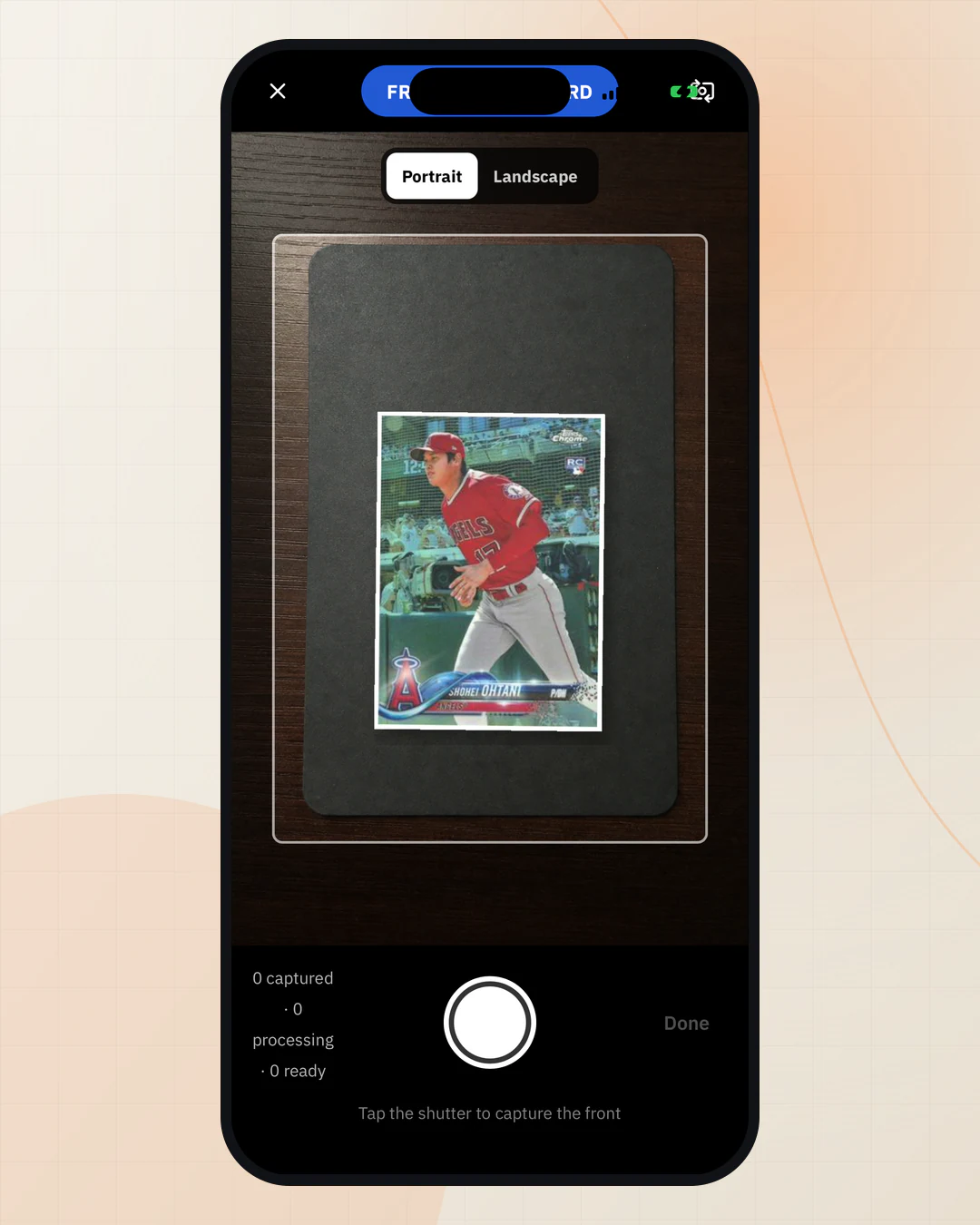
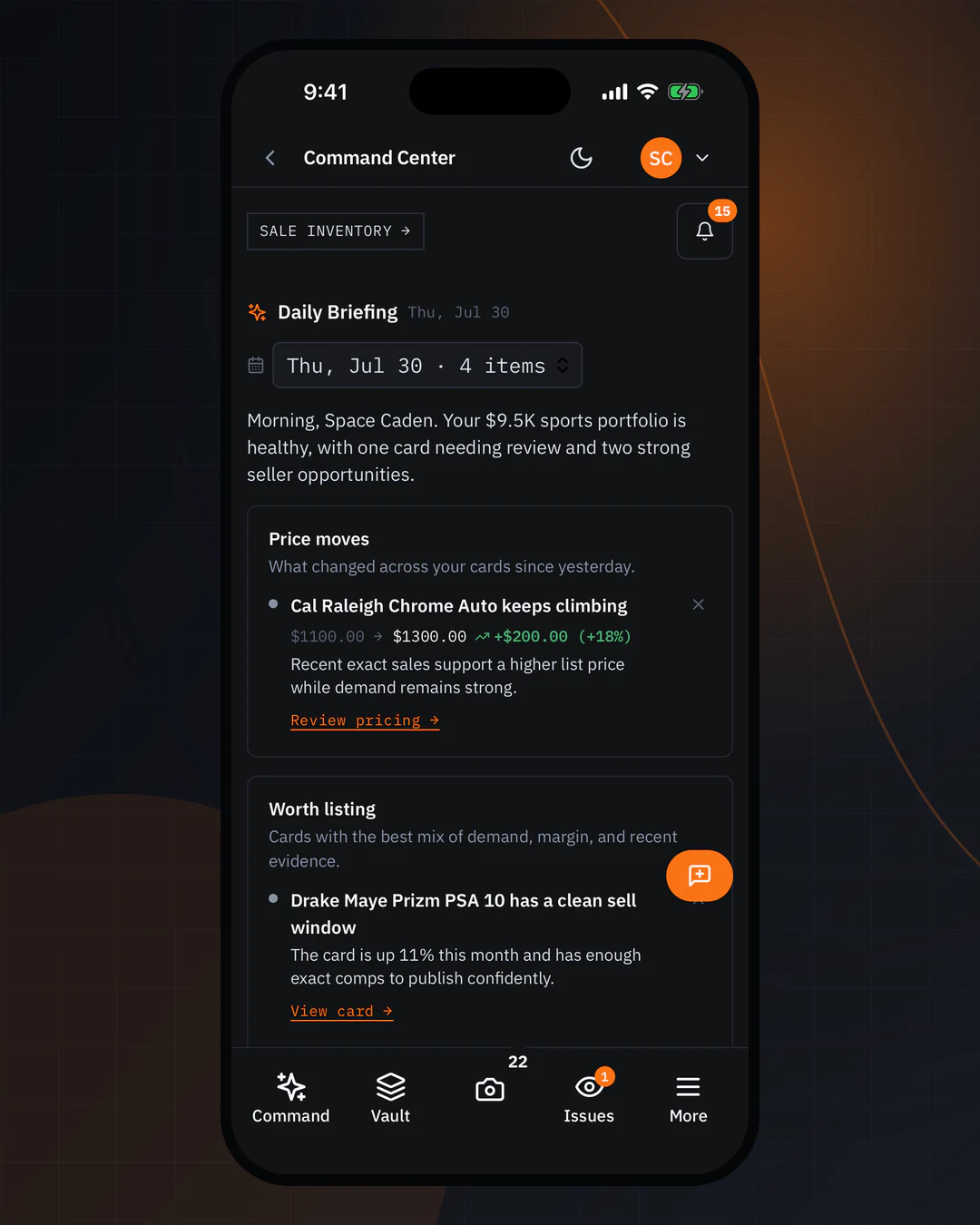
Every view below is a current native-app or mobile-web screen shown with real card photos from RocketVault's demo library. The examples include raw and graded cards across collecting, selling, trading, and card-show workflows.
Seller Marketplace uses the same card records on mobile. Marketplace is a primary bottom-navigation destination and Selling is grouped with it under More for listings, offers, orders, balance, and payouts. From Vault → All Cards, select any number of cards and use List to choose RocketVault Marketplace, eBay, or both. Then publish several cards together or review them one at a time. Draft-lot Publish listing uses the same choice: eBay keeps the grouped lot, while RocketVault or both opens the cards for individual listing review. Every card stays in your Vault if you leave before finishing. Links to past trades still work.
The homepage mobile tour also shows grading and collection surfaces in both visual themes.
Navigation
On mobile, the desktop sidebar collapses into a five-slot bottom navigation bar. Marketplace-enabled accounts use this order:
| Slot | What it does |
|---|---|
| Vault | Inventory tabs (Available / Drafts / Active / History) |
| Marketplace | Browse the exact live listing count, filter to Other sellers, and save private drafts before seller setup; guest checkout availability is shown on rocketvault.io |
| Camera (center action) | First asks whether you want to add cards to the Vault or check a price |
| Issues | Deep-link into the Cards page filtered to attention items, with a sub-count badge |
| More | Command Center, Selling, research, settings, Feedback, and the rest of the workspace |
Accounts without Marketplace access keep Command in the second slot instead; they do not see Marketplace or Selling navigation.
The bottom nav lives 64 px above the iOS/Android safe area, so it never collides with the home indicator or notch. The header at the top of every page has a back chevron that returns you to the previous view with full scroll position restored.
Your Collector, Seller, or Both workspace preference also changes the order of mobile destinations. Collector mode gives Collection a primary slot; Seller mode keeps the sale-inventory path primary. No feature is removed: the complete navigation remains in More, and the preference can be switched instantly under Settings → Account.
Capturing Cards on Mobile
Tap the center camera action. RocketVault first asks one plain question:
- Add cards to Vault
- Check a card's price
Nothing opens the camera or photo library until you choose. After that, select Take photos, Choose photos, or resume a saved capture.
Add cards to Vault
Add one card or a batch using a card-by-card rhythm: Card 1 front, Card 1 back, review the pair, then Card 2. Each side is safely saved before the next step. You can retake either side, remove or reorder a card, add another card, and review the complete batch before submitting. The installed app uses the native rear camera's full-resolution still image for capture and retakes.
After RocketVault saves the images, it opens a dedicated processing page. You can safely leave while processing continues. The page restores after backgrounding or relaunch and shows each card moving through upload received, identification, matching, saving, and complete. Failed cards can be retried without repeating successful cards. Complete means the card is safely in your Vault; View in Vault opens it immediately.
Check a card's price
Price Check is a separate, recoverable flow. It identifies and prices the card without creating inventory. Only the explicit Add to Vault action on the result can save it. While RocketVault works, the screen shows Upload → Identify → Match → Price → Market → Finish and preserves the scan through a weak connection or app restart. See Scan for a Deal.
Recommended
RocketVault always keeps each physical card together: front, back, pair review, then the next card. Processing remains disabled for an incomplete pair. See the Multi-Card Capture guide for the full flow.
Mobile-Optimized Features
Pull-to-refresh
Pull down at the top of any list or the Dashboard to refresh data. Releases as soon as it's done.
Scroll restoration
When you tap the back chevron, RocketVault remembers exactly where you were on the previous page — no more scrolling back to the row you tapped.
RocketVault also remembers your place when you use browser Back, finish editing a card, switch tabs, filter, sort, or move between pages. If an old saved place is no longer available, the normal first page opens instead.
Skeletons during loading
Lists, KPIs, and Card Detail panels render skeleton placeholders while data loads, so the layout doesn't snap around as content streams in.
Bumped tap targets and quiet inventory chrome
Tap targets across the inventory pages are sized for thumbs. Filter chips, attention chips, and bulk action buttons all hit the 44px minimum so you don't have to aim.
Sticky bottom CTA on Card Detail
On Card Detail, the primary listing action (List card when Seller Marketplace is enabled, Publish Listing otherwise), plus Save Draft and Reprice, sticks to the bottom of the viewport on mobile. Long pages no longer hide the next action below the fold.
Seller Marketplace from thumb to shipment
Marketplace search, quick filters, pricing evidence, offers, purchases, shipping, seller balance, and support reviews all fit phone screens without sideways scrolling. Core actions use large touch targets, long order and tracking numbers wrap, and Publish listing stays immediately above the bottom navigation while you review a Vault card.
Save private drafts on your phone before seller setup. When ready to publish, the guided sheet asks for two required steps: Stripe payout verification and your ship-from address. Shipping customization is optional; use the defaults or adjust who pays, delivery choice, and packaging later. Card-ready choices include the RocketVault Card Envelope for one card, two sleeved cards, or larger eligible raw-card orders up to 3 oz, plus tracked mailers and graded-card packages. Later edits remain under Settings → Selling, and one listing can use different choices without changing the account default. Cards from one seller share a package and label when they fit safely. eBay business policies appear only when you list on eBay or both. You do not need another shipping account.
On Selling, select several RocketVault listings and choose Edit selected to change prices, offers, shipping, package, or condition notes together. At checkout, RocketVault fills in the buyer's most recently used saved delivery address and keeps Edit available when it needs to change.
The mobile balance view distinguishes Pending settlement, Eligible after delivery, Available at Stripe, Payable now, and Paid out. The payout action changes from setup to continuation to management as Stripe onboarding advances. Seller onboarding, hosted checkout, payout settings, and label documents use the native external-link handoff on iPhone and iPad.
Card Detail mobile density
The Card Detail page packs more onto a single phone screen — pricing, identification, and image controls are tighter while still respecting tap-target minimums.
Use More → Card shows on Card Detail to assign an existing card to a show. Scanning never opens a show prompt or assigns a card automatically.
The iPhone app exposes Access & Limits under More → Settings. Trading Marketplace and Grading beta screens remain web-only until they are ready for the App Store build; Card Shows is fully available in the app.
Actionable empty states
Empty states across the app come with a clear next-step button (Upload, Browse Catalog, etc.) instead of a generic "Nothing here" message.
Responsive modals as bottom sheets
16+ dialogs across the app (destination and publish flows, delete confirms, refresh stale, lot builder, image swap, attention triage, etc.) automatically switch to a bottom sheet on mobile via the shared ResponsiveDialog component. They lock to the bottom edge, swipe-to-dismiss, and respect the safe-area inset.
On phones and tablets, open More → Feedback to report an issue or suggest an improvement. The More menu closes before the feedback dialog opens; closing feedback returns focus to More. Desktop keeps the floating Feedback button on supported pages. Workspace selection, tour overlays, toasts, and bottom sheets use separate layers and preserve access to dismissal and primary controls.
Image preview lightbox
Tap any card thumbnail to open a full-screen preview with a front/back toggle. On desktop this is a hover preview — on mobile it's tap-to-open.
Filter sheets
On mobile, filter controls move into a slide-up bottom sheet instead of a sidebar. Tap the filter icon to open.
Tips for Mobile Use
- Install the native app — download RocketVault from the Apple App Store for native camera capture and push notifications. If you prefer the mobile web app, Add to Home Screen removes the browser toolbar.
- Stable connectivity — card processing requires a connection. For best results, use Wi-Fi when uploading large batches; the offline indicator appears in the header if you drop off.
- Portrait mode is preferred — the layout works in landscape but is tuned for portrait.
Save a Marketplace draft before seller setup
Choose a Vault card, select RocketVault Marketplace, and tap Save draft after reviewing the title and price. The action stays above the phone navigation while setup is incomplete. Your draft remains private. Verify payouts and confirm your ship-from address when you are ready to publish; shipping defaults are prepared automatically and customization is optional.
Getting Started with RocketVault
Set up your account, explore the dashboard, and learn the basics of the RocketVault sports card platform.
Uploading Cards
Learn how to upload card images individually using drag-and-drop, the file browser, or your phone camera.
Multi-Card Capture
Capture each card front and back, confirm the pair, and follow every card into the Vault.
Dashboard Guide
Read the RocketVault Dashboard — actions queue, KPIs, value distribution, inventory pipeline, refresh activity, and the event log.
Selling on RocketVault Marketplace
List cards from your Vault, choose how you ship, see what you will earn, and keep eBay listings in sync.